
Your own domain with Cloudflare
Buy hotel-alberto.com through Cloudflare and put your booking website on it.
Your booking website already works on its Hoteliera address, hotel-alberto.ibe.hoteliera.com. Guests trust a hotel’s own name more, and it’s easier to print on a card: hotel-alberto.com. If you don’t have a domain yet, buy it through Cloudflare. Its Registrar sells domains at the price the registry charges, with no mark-up, and the domain is on Cloudflare’s free DNS from the first minute. So you only add two DNS records, and there are no nameservers to change. Already have a domain somewhere else? Read A domain from another registrar instead.
Hands-on
Buy the domain on Cloudflare
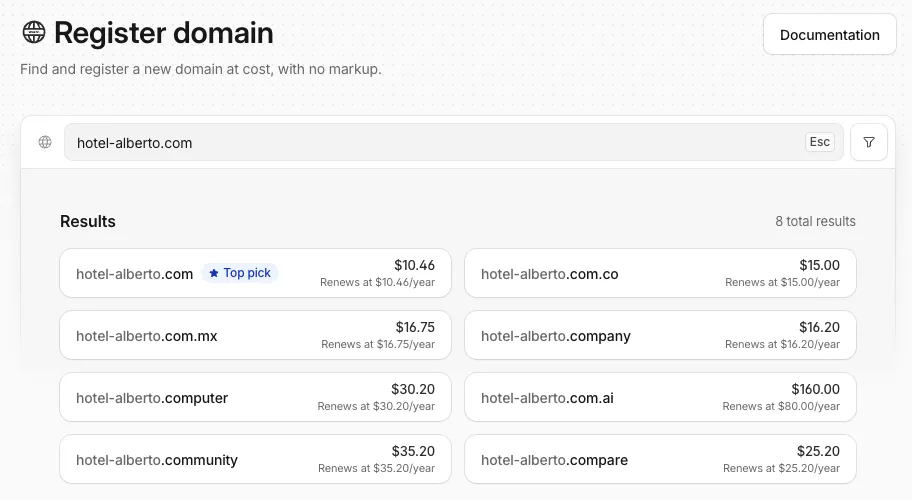
- Create a free account at dash.cloudflare.com and confirm your email address: Cloudflare only sells domains to verified accounts.
- Open Domains › Registrations, type the name you want in Search for a domain name and click Search. Cloudflare lists the name with its yearly price and similar endings.
- Click the name you want. Choose how many years to pay for, fill in the contacts and the payment method, then click Complete purchase.
A domain bought on Cloudflare always uses Cloudflare’s nameservers, so it’s ready for the next steps right away.
Activate the domain in Hoteliera
- Go to Settings › Websites, open your website and pick the Domain tab.
- In the Own domain card, switch on Active.
- Type the domain without
www:hotel-alberto.com. Activating connects bothhotel-alberto.comandwww.hotel-alberto.com. - Click Activate domain. The status next to the field reads Waiting for DNS.
- At the bottom of the page, DNS records for your domain lists the two records to add, each with a copy button:
wwwas a CNAME and@(the domain without www) as an ALIAS/ANAME, each pointing to its own target ending inherokudns.com.
The panel also carries two notes worth reading: “Cloudflare: set Proxy status to DNS only (grey cloud) until the certificate is issued.” and “The domain without www needs an ALIAS or ANAME record. On Cloudflare, add it as a CNAME on @: Cloudflare flattens it automatically (CNAME flattening).”
Add the two records in Cloudflare
In Cloudflare both records are a CNAME. Copy the targets from Hoteliera; yours will be different:
| Type | Name | Target | Proxy status |
|---|---|---|---|
| CNAME | www |
hotel-alberto-com-a1b2c3.herokudns.com |
DNS only |
| CNAME | @ |
hotel-alberto-com-d4e5f6.herokudns.com |
DNS only |
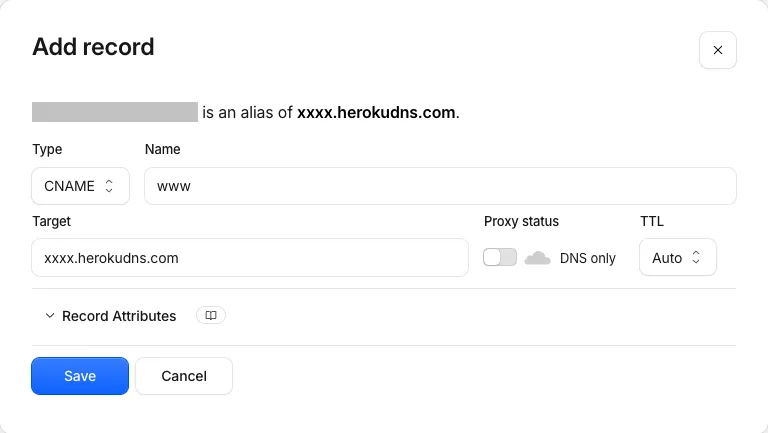
- In Cloudflare, open your domain and go to DNS › Records.
- Click Add record. Pick Type
CNAME, typewwwas Name and paste the www target as Target. - Click the orange cloud next to Proxy status so it turns grey and reads DNS only.
- Click Save.
- Add the second record the same way, with
@as Name and the other target. Cloudflare accepts a CNAME on the bare domain: it flattens it into the right address on its own.
See the effect
On Cloudflare the records work within a few minutes, and Hoteliera issues the security certificate on its own, usually within minutes to an hour. Back on the Domain tab, click Check again: the status turns from Waiting for DNS to Active. Open https://hotel-alberto.com in a browser: your booking website opens with the padlock, and www.hotel-alberto.com leads to the same site.
If the status reads Certificate failing: followed by a reason, check the two records first: a wrong target or an orange cloud is almost always the cause. Fix them and click Check again. To disconnect the domain later, click Remove next to the field; both addresses stop opening your website right away.
See Hoteliera in action
Free PMS forever. Book a 15-minute demo and see how it fits your property.
Request a demo