
Hotel profile and photos
Give the hotel an address, a short description, photos and check-in times.
Guests decide in seconds whether a hotel looks real and trustworthy. A full address, a two-line description and a couple of good photos do most of that work, and they also feed your booking website and your invoices. In Hoteliera they sit in your location: every property you run is a location, and a single hotel has exactly one. Check-in and check-out times live on a separate small screen, so this chapter visits both.
Hands-on
- Glance at Settings › Localization first. Because the account was created for Italy, Default language for site/IBE is already Italian and English is already listed under Languages for site/IBE, so there is nothing to change.
- Go to Settings › Locations and open Hotel Alberto.
- Fill in Street & Number (Via Monferrato 12) and Post code / Zip (10131). Leave Address (second line) empty.
- County: pick the region, Piedmont. Then City: Torino.
- Paste a Maps link for the hotel and the GPS coordinates (lat,long). The blue box under the fields shows where to copy them from in Google Maps.
- Under Classification, set Property type to Hotel and click the stars.
- Scroll to Preview website settings › Texts. Write a Banner tagline and a Short description, once in English and once in Italian.
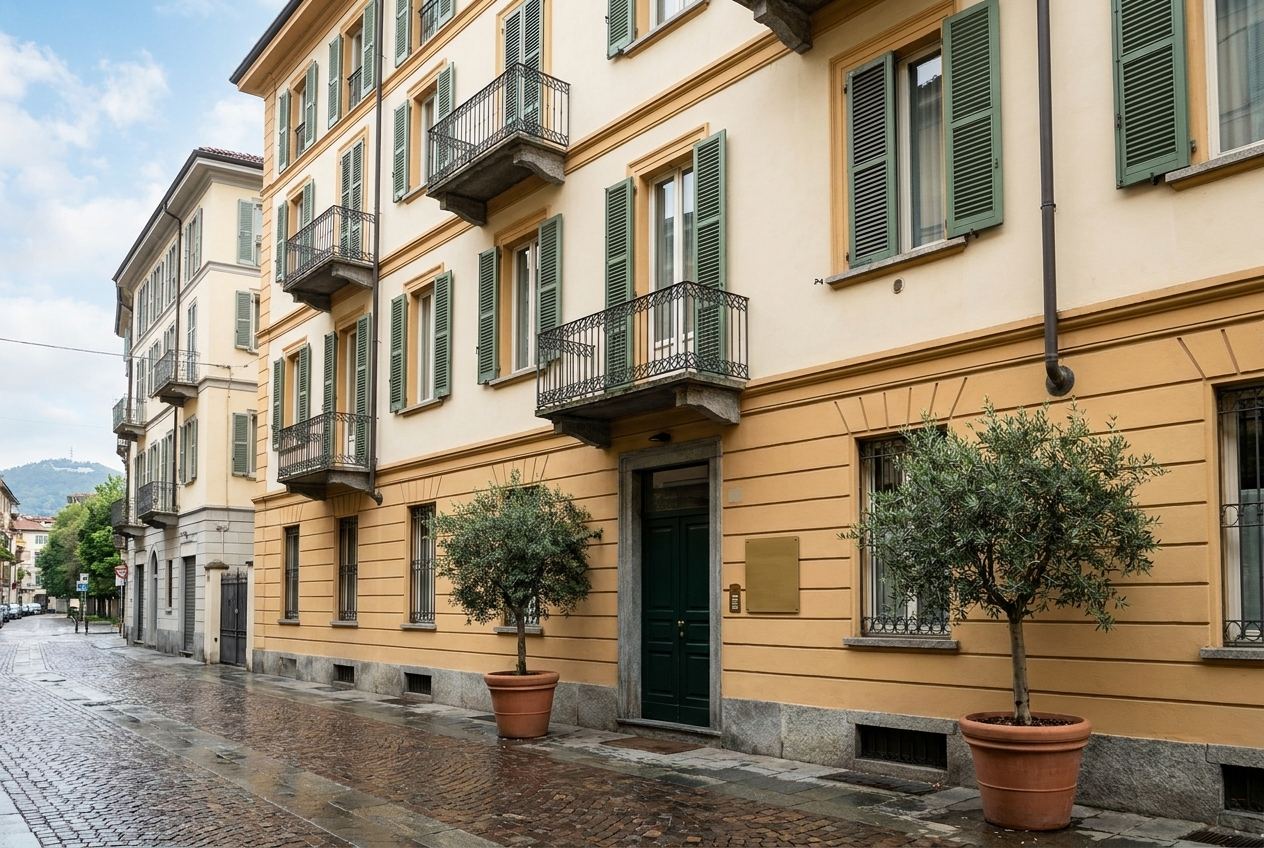
- Open the Images tab. Under photos, click Upload a photo, then Browse, choose your pictures and click Done. Add one more under Banner image; that one offers a crop step, where Upload keeps the whole picture.
- Click Save.
- Go to Settings › Check-in/out times. Click a time to change it with the arrows. Hotel Alberto keeps Check-in time at 14:00 and moves Check-out time to 11:00. Click Save.
See the effect
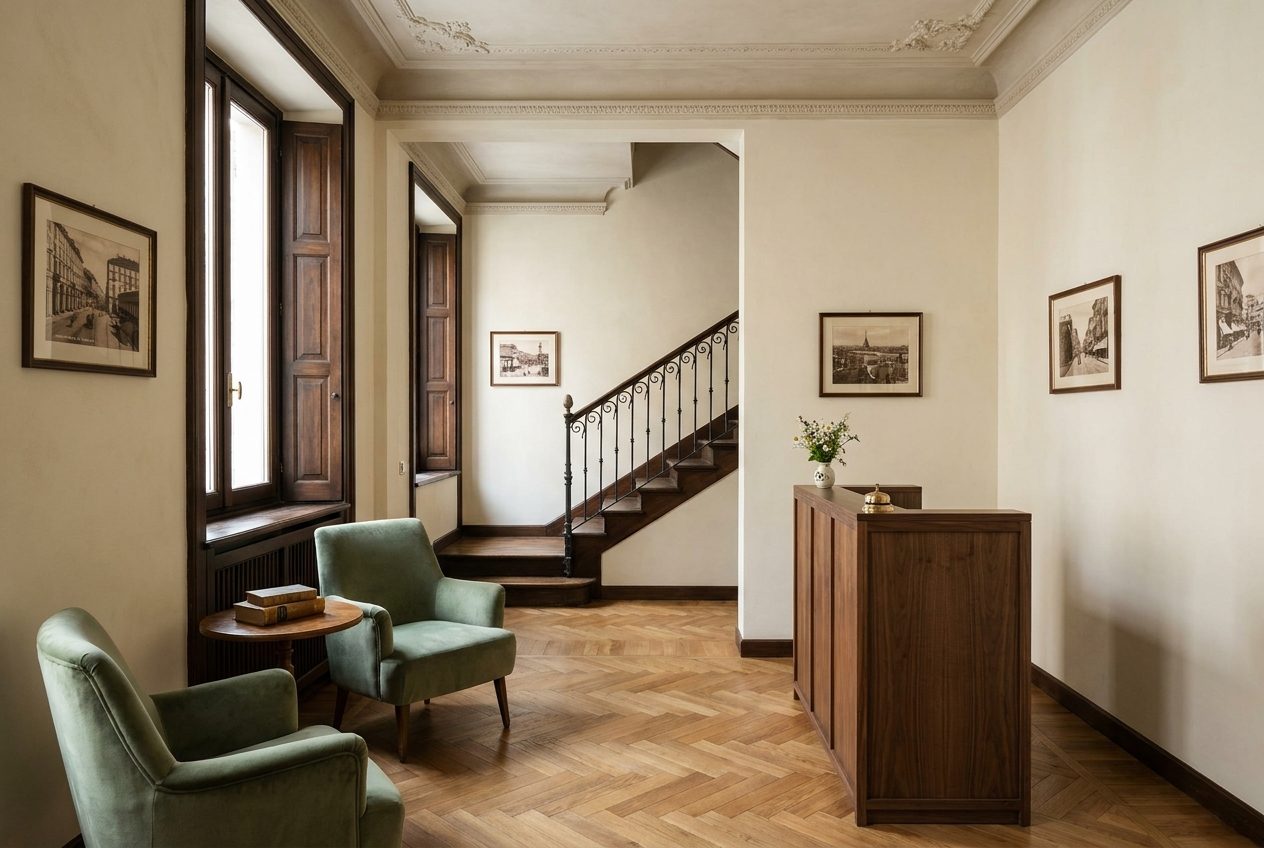
Your booking website picks the changes up straight away: the phone and email in the header, the street in the footer, and the facade photo behind the hotel page. The room photos come in the next chapter.
See Hoteliera in action
Free PMS forever. Book a 15-minute demo and see how it fits your property.
Request a demo